 iGBA
How to Use an Xbox or PS5 Controller With a GBA Emulator on iPhone
Pair the controller in the iOS Settings app under Bluetooth, or plug it into USB-C, then open iGBA, Settings, Controllers, Configure button mapping. Fast-forward can be mapped to any button, A and B have turbo, and the D-pad stays fixed.

 ★ 4.4 (2,692)
Controllers supported by iPhone and iGBA
iOS itself supports Xbox Wireless Controllers, PS5 DualSense and PS4 DualShock 4 controllers, and MFi game controllers. iGBA reads whatever iOS exposes, so there is nothing to install: pair the controller, or plug it in, and iGBA picks it up. Controller support is free.
- Bluetooth controllers pair in the iOS Settings app, under Bluetooth.
- Wired controllers plug into the USB-C port of an iPhone that has one.
- iGBA uses one controller at a time: the first one connected. A second paired pad is ignored until the first disconnects.
- On iPad, a physical keyboard also works, with fixed keys: arrows or WASD to move, Z or K for A, X or J for B, Q for L, E for R, Return for Start, Tab or Right Shift for Select, Space for fast-forward, Esc or M for the pause menu. Keyboard keys cannot be remapped.
Pair an Xbox controller
- Turn the controller on with the Xbox button, then hold the small pairing button on the top edge until the Xbox light blinks fast.
- On the iPhone, open the iOS Settings app, tap Bluetooth and choose the controller from the list. The light turns solid when it is connected.
- Open iGBA, tap Settings, then Controllers. The External controller section shows Connected: followed by the controller's name.
- Tap Configure button mapping to check or change the buttons.
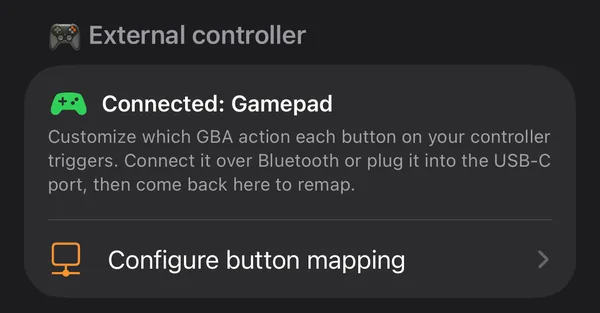
An Xbox controller is the simplest case: its A, B, X and Y buttons arrive in iGBA under exactly those names. If the section says No controller connected, the pad is not paired or is connected to another device. You can still edit the mapping now and it is applied when the pad connects.
Pair a PS5 DualSense controller
- With the controller off, hold the PS button and the Create button (the small one left of the touchpad) together until the light bar flashes quickly.
- On the iPhone, open the iOS Settings app, tap Bluetooth and choose the DualSense Wireless Controller. This needs iOS 14.5 or later.
- Open iGBA, then Settings, Controllers: the controller's name appears under External controller.
iOS reports a DualSense with the same names as an Xbox pad, by position: Cross is A, Circle is B, Square is X and Triangle is Y. So with the default mapping Cross presses A, Circle presses B, Square is Select and Triangle is Start. A PS4 DualShock 4 pairs the same way, holding PS and Share.
Connect a wired USB-C controller
Plug a USB-C controller into the iPhone's USB-C port, or use a USB-C cable with a pad that supports wired play. Nothing is paired: iOS exposes the controller as soon as it is plugged in, and iGBA treats it like a Bluetooth one.
- Open Settings, Controllers: Connected: and the controller's name confirm it was found.
- Pads that iOS does not describe as a standard gamepad are read through their raw inputs. Open Configure button mapping, then What iGBA detects: it lists the inputs it sees and says whether the profile is an extended gamepad or generic.
- Unplugging releases every held button, so nothing stays stuck.
Map A, B, L, R, D-pad and Turbo
- Open iGBA, tap Settings, then Controllers, then Configure button mapping (the screen is titled Button Mapping).
- Press any button on the controller: its row lights up. Rows that look dimmed are buttons this controller does not have.
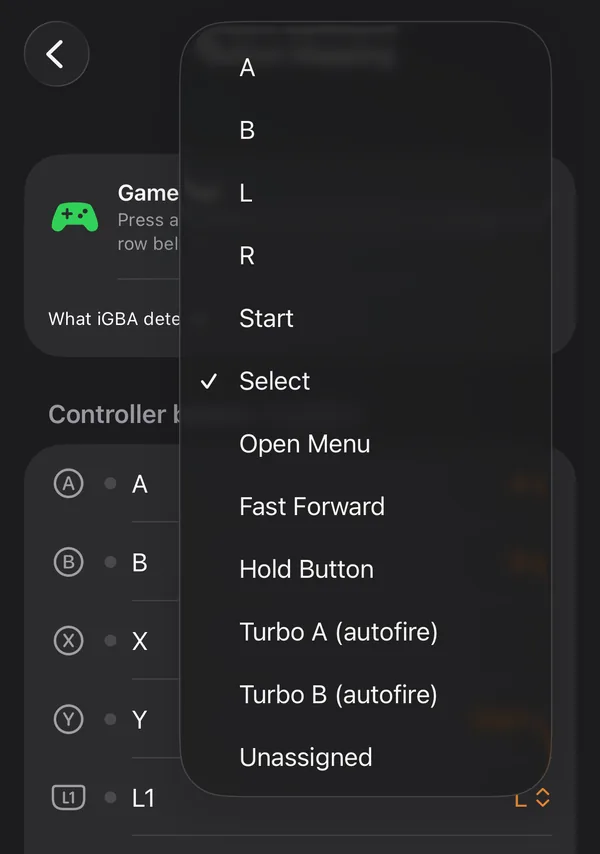
- Tap the row and choose an action from the list: A, B, L, R, Start, Select, Open Menu, Fast Forward, Hold Button, Turbo A (autofire), Turbo B (autofire) or Unassigned.
- Play a moment to test it. Reset to Defaults restores the starting layout.
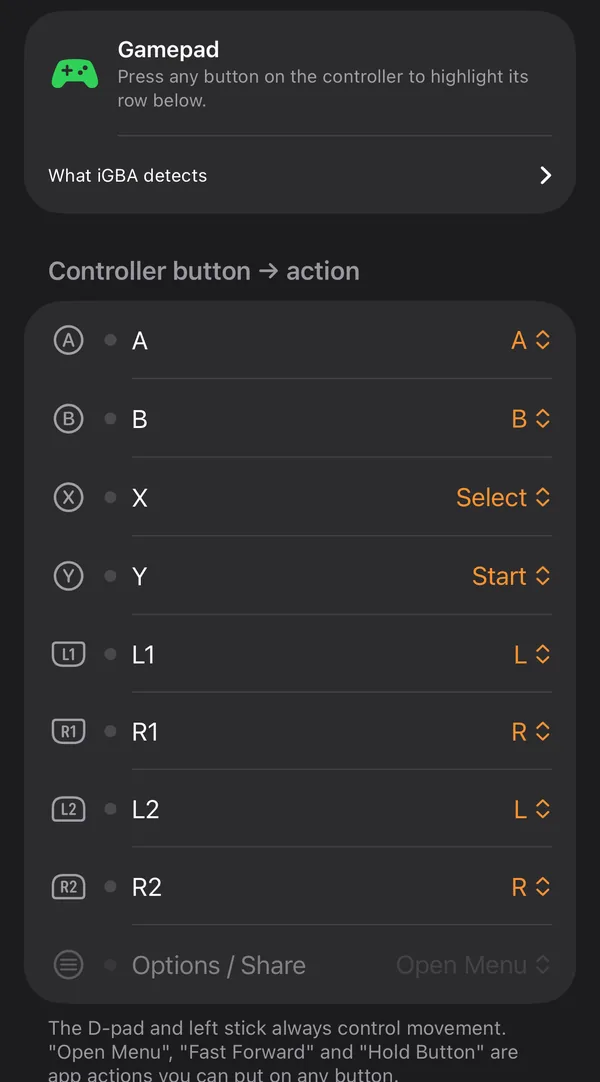
The default mapping, using the names iOS gives each input:
| Controller input | Default action |
|---|---|
| A | A |
| B | B |
| X | Select |
| Y | Start |
| L1 | L |
| R1 | R |
| L2 | L |
| R2 | R |
| Options / Share (View on Xbox, Create on DualSense) | Open Menu |
The Menu button (Menu on Xbox, Options on DualSense) always opens the pause menu, whatever the mapping says. The D-pad and the left stick always move: they are fixed, not remappable, and their directions are combined if you press both. Here is the full picture of what can and cannot be assigned:
| Action | Can you assign it? | How | Notes |
|---|---|---|---|
| A, B, L, R, Start, Select | Yes | Choose it as the action of any row in Button Mapping | Any controller button can send any of these, and two buttons can share one action. |
| D-pad and left stick | No, fixed | Not remappable | They always move the character. |
| Fast Forward | Yes | Choose Fast Forward for a row | Hold it to run at the Fast Forward Speed; a tap switches to the next speed. |
| Turbo A (autofire), Turbo B (autofire) | Yes | Choose it for a row | Presses the button about 10 times a second while you hold it. A and B only. |
| Open Menu | Yes | Choose it for a row | Same pause menu the Menu button opens. |
| Hold Button | Yes | Choose it for a row | Press it, then press the button to keep held. Tap the screen or press Menu to release. |
| Rewind | No | Pause menu, Rewind, by touch | There is no controller action for rewind. |
| Save state, load state | No | Pause menu, by touch | The controller can open the pause menu but does not move around it. |
| Right stick, L3 and R3, Home or PS button, touchpad, back paddles | No | Not read | iGBA does not use these inputs. |
Turbo, in both senses
Turbo means two different things in iGBA. Turbo A (autofire) and Turbo B (autofire) are mapping actions that repeat a press while you hold the button: they exist only for A and B, and there is no turbo for L, R, Start or Select. Fast-forward, the other kind of turbo, speeds up the whole game. The next section covers it.
Can fast-forward be mapped to a controller?
Yes. In iGBA 2.14.0, any controller button can be set to Fast Forward.
- Open Settings, Controllers, Configure button mapping.
- Tap the row of the button you want, for example X or R2, and choose Fast Forward.
- Open Settings, Performance, and under Speed Control choose the Fast Forward Speed: 2x, 3x or 4x, free for everyone, with 4x as the starting value.
- In a game, hold the button to fast-forward and let go to return to normal speed.
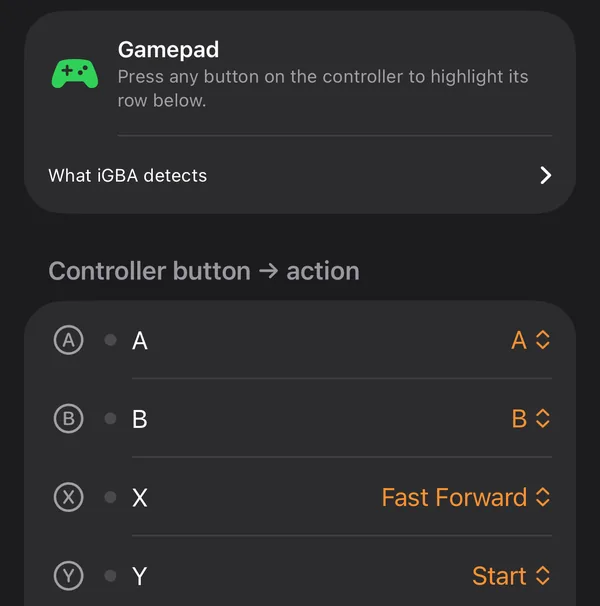
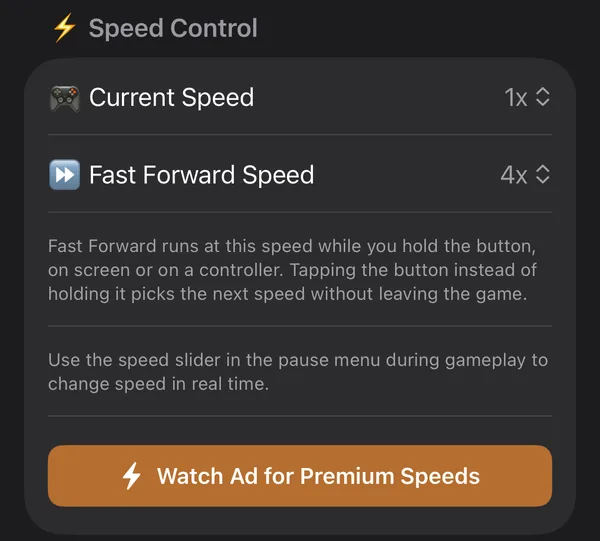
- Hold the button: the game runs at the Fast Forward Speed until you release it.
- Tap the button (a quick press): the speed moves to the next one, 2x, 3x, 4x and back to 2x, and a short badge such as 3x flashes on screen.
- Fast-forward is hold-only: there is no toggle that keeps it on by itself.
- When you let go, the game returns to the speed set as Current Speed. Without Pro, Current Speed offers 1x, 1.5x and 2x; 0.5x, 2.5x, 3x and 4x need Pro or a rewarded ad.
- On the iPad keyboard, Space does the same.
Rewind has no controller button in this version. You get to it from the pause menu, Rewind, with a tap.
Fix wrong buttons, stuck inputs and controller detection
- The controller is paired but iGBA ignores it: the section under External controller should say Connected: and the name. If it says No controller connected, turn the pad off and on, or forget it in the iOS Bluetooth list and pair again. A pad that is connected to another device cannot connect to the iPhone.
- You have two pads: only the first one connected works. Disconnect it and the second one is picked up.
- A button does the wrong thing: open Configure button mapping, press the button to see which row lights up, and change that row. Reset to Defaults starts over. The mapping is remembered for each controller model and restored when it reconnects.
- No row lights up for a button: open What iGBA detects to see whether iGBA sees the input at all. Right stick, stick clicks, Home and touchpad are never read.
- A button stays pressed: unplug or disconnect the pad, which releases everything. If you used Hold Button, tap the screen or press Menu to release it. Turbo stops as soon as you let go, and leaving the app releases every input.
- The on-screen buttons disappeared: on iPhone iGBA hides the touch controls while a controller is connected. Disconnect or turn off the pad to get them back.
- You cannot move around the pause menu with the pad: the Menu button opens it, but you tap through it. Rewind and save states are there.
Best landscape control setup
A controller works in portrait or landscape, but landscape gives the biggest picture. To keep the game from rotating while you play, open Settings, Video & Audio and set Lock orientation to Always landscape (the options are Follow device, Always portrait and Always landscape, and the setting is for iPhone only).
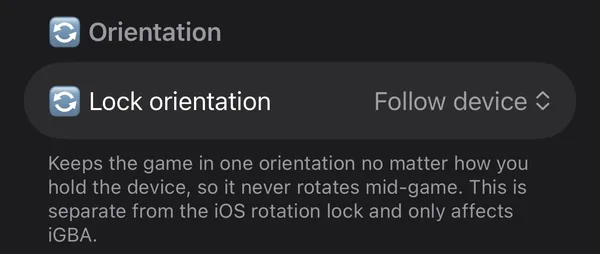
With a clamp or a controller holder you will not touch the screen, but the touch controls still matter when the pad is away. Portrait and landscape have separate touch layouts, so set them up apart:
- Open Settings, then Controllers. In the touch controller section, switch the controller mode to Custom (Beta).
- Adjust Button scale and Vertical offset, or tap Edit button layout.
- In the editor, choose Landscape at the top, then drag, resize and recolor the buttons or hide the ones you never use.
- Save and open a game to try it. Classic brings back the original layout at any time.
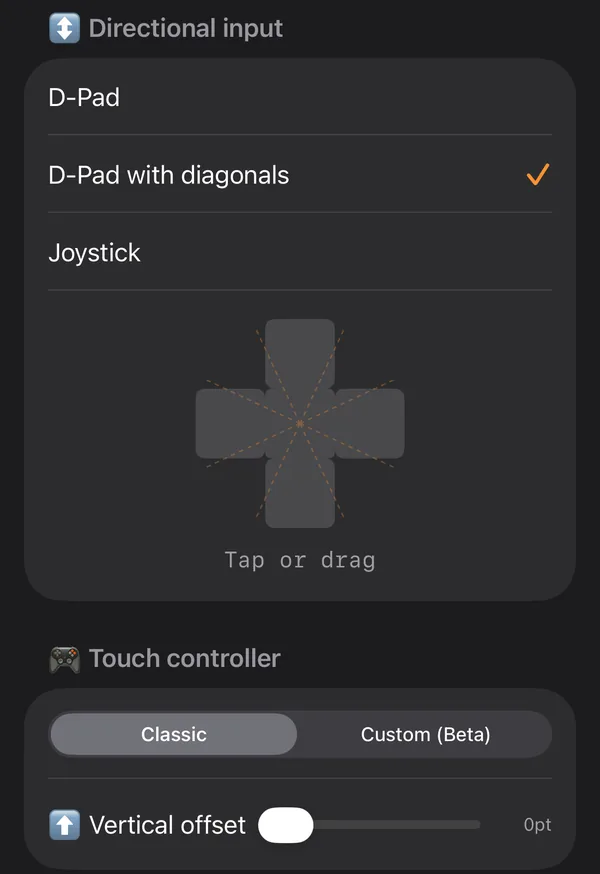
Directional input comes first on the Controllers page, and each choice has a tester right under it:
- D-Pad: four directions, like the original.
- D-Pad with diagonals: also registers diagonal presses, useful for eight-way movement.
- Joystick: a virtual analog stick instead of the cross.
Controller skins
iGBA has 8 built-in skins in Settings, Appearance: Classic, Midnight, Paper, Indigo, Neon, Sunset, Forest and Ocean. Classic is free; the other seven come with iGBA Pro or unlock for 24 hours with a rewarded ad.
You can also set a custom background image for the controller; a transparent PNG gives the cleanest result, and the image is stored inside the layout.
Ready to try it? Download iGBA and test your controller setup with the store buttons on this page.
Questions and answers
Does iGBA support Xbox and PS5 controllers?
Can I map fast-forward to a controller button?
Is there a turbo button for the controller?
Can I remap the D-pad or the analog stick?
Are the controller skins free?
Can I use a virtual joystick instead of a d-pad?
More iGBA guides
- How to save a state and load it back in a GBA emulator
- How to rewind a mistake and speed up a GBA emulator
- How to use cheat codes in a GBA or GBC emulator
- How to use the GBA link cable nearby or online, or trade with yourself on one iPhone
- How to play GBA and GBC games on Apple Watch
- How to back up GBA save files before a reinstall or new phone
- How to transfer your GBA saves between iPhone and Android
- GBA emulator black screen: what to check, in order
- How to open a GBA file on an iPhone or iPad
- How to fix a GBA emulator save error with Flash 128K
- How to patch a ROM on iPhone with iGBA, then play the hack
- How to play Radical Red on iPhone, from patch to save file
- Play Unbound on iPhone and bring your old save along
- ROM hack white screen: what a bad patch does and how to fix it
- All questions about iGBA
- Back to iGBA