 eNES
Play NES games on Apple Watch: installation and transfer
Install eNES on your iPhone, add its Watch app, then open a NES game's page and tap Send to Apple Watch. The game shows up in the list on the watch and plays there without sound. SNES games stay on the phone.
 ★ 4.4 (183)
Install the Watch app
There is no separate purchase. The Watch app ships inside the eNES download for iPhone, so it is already on your phone once eNES is.
- Install eNES on the iPhone that is paired with your watch.
- If your watch installs apps automatically, the eNES app appears on it after a minute or two. If not, open the Watch app on the iPhone, scroll down to the apps you can install and tap Install next to eNES.
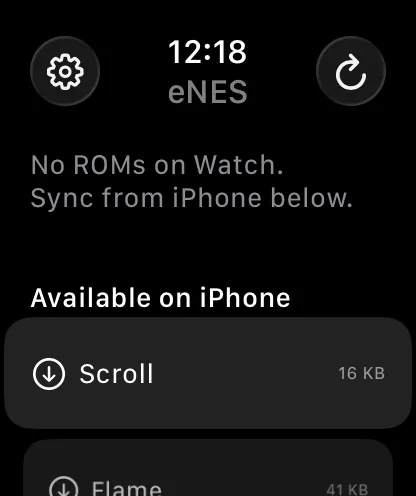
- Open it once on the watch. The list is empty at first and says No ROMs on Watch.
The watch needs watchOS 9 or later. The Watch app's icon is labelled iNES Watch, not eNES. It is the same app; look for that name if you cannot find it.
Send a NES game from iPhone
The watch cannot open files by itself, so every game comes from the eNES library on your iPhone. Add the .nes file to eNES on the phone first, as usual. You may only use game files you have the right to use.
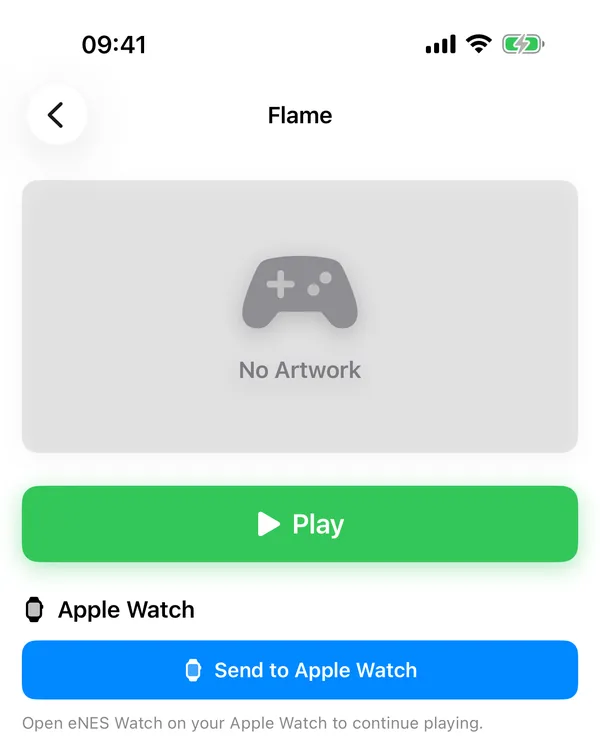
- In eNES on the iPhone, tap a NES game to open its page.
- Under the big play button there is an Apple Watch section. Tap Send to Apple Watch.
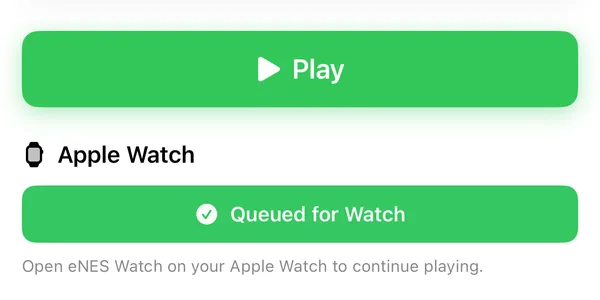
- The button reads Sending… for a moment, then turns green and reads Queued for Watch.
- On the watch, open eNES. The game appears in the list once it has arrived. Tap it to play.
You can also pull a game from the watch. Once eNES has run on the iPhone, the watch shows an Available on iPhone section with every NES game in your phone library that is not on the watch yet. Tap one and a bar reads Syncing from iPhone… with a percentage and the size. Our 41 KB test game showed 59% and 25 KB of 41 KB on the first screenshot and was done in under a second.
Transfer a save state
If the game already has a save state on the iPhone, a second button appears under the first one: Send Save State. It sends the most recent save for that game, manual or automatic, whichever is newer.
Send the game first and the save state after it. The watch keeps one save per game and loads it when you open that game.
It also works the other way. The watch saves when you leave a game, when you lower your wrist and the app goes to the background, or when you tap the save icon in the bar at the top of the game (tap the top of the screen if the bar has hidden itself). Each of those saves goes back to the iPhone and lands with the game's auto saves there. The iPhone keeps the 3 newest auto saves per game, so a long watch session can push out an older auto save. Your manual saves are not touched.
One thing to know before you rely on it: after the wrist-down save the game stays paused, and there is no resume button. Close it with the X in the top bar and open it again; it picks up from that save.
What Queued for Watch means
Queued for Watch means the iPhone handed the file to watchOS for delivery. It does not mean the game is already on the watch. After 5 seconds the button goes back to Send to Apple Watch, whether the file has arrived or not.
The surprise for us was the red Watch not paired message on a phone that was paired. It also appears when the game file sits in iCloud Drive and has not been downloaded to the iPhone yet. eNES starts that download at the same moment, so waiting a few seconds and tapping again usually works.
| What you see | Where | What it means | What to do |
|---|---|---|---|
| No Apple Watch paired | iPhone, game page | The iPhone does not see a paired watch | Pair the watch in the iPhone's Watch app, then reopen the game page |
| Send to Apple Watch | iPhone, game page | Ready to send this NES game | Tap it |
| Sending… | iPhone, game page | eNES is copying the file for transfer | Wait a moment |
| Queued for Watch (green) | iPhone, game page | watchOS has the file and will deliver it | Open eNES on the watch and look for the game; the button resets after 5 seconds |
| Watch not paired (red) | iPhone, game page | The transfer could not start: no paired watch, or the file is still in iCloud Drive | Wait a few seconds and tap again; if it repeats, check the pairing |
| No ROMs on Watch. | Watch, list | No game is stored on the watch yet | Send one from the iPhone |
| Available on iPhone | Watch, list | NES games in your iPhone library that are not on the watch | Tap one to pull it |
| A phone icon with a slash next to each game | Watch, list | The watch cannot reach the iPhone right now, so those games are greyed out | Open eNES on the iPhone and keep it close |
| Syncing from iPhone… | Watch, list | The game is arriving; the percentage and size update as pieces come in | Keep the iPhone nearby until it finishes |
| Transfer paused. Keep iPhone nearby and try again. | Watch, list | No piece arrived for 20 seconds, so the half-copied file was thrown away | Move the phone closer and tap the game again |
| Transfer failed. Try syncing this ROM again. | Watch, list | The file arrived but its checksum did not match, so it was discarded | Send it again |
Sound, SNES and other limits
- NES only. SNES game pages on the iPhone have no Apple Watch section at all, and the watch list only ever shows NES games.
- No sound. watchOS does not have the audio framework the emulator uses, so the watch is silent. Games play fine without it, but anything that depends on an audio cue gets harder.
- The picture refreshes 30 times a second. The game itself runs two frames per refresh, so it keeps normal speed; scrolling just looks a bit less smooth than on the phone.
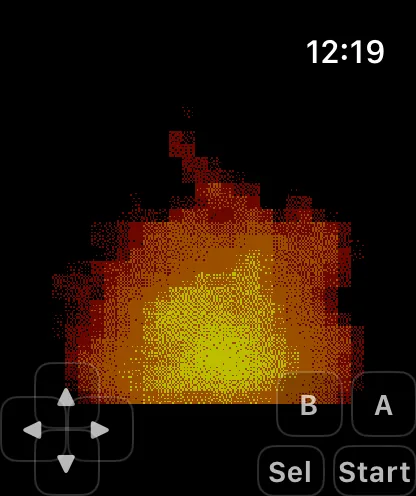
- One player, touch only. A D-pad and A, B, Sel and Start buttons sit along the bottom edge over the picture. The gear icon on the watch's game list has three button sizes.
- No cheats, rewind or fast-forward on the watch. Those stay in the iPhone app.
There is no size limit in the transfer code, and NES files are small: a game moves in 24 KB pieces, so our 41 KB test game needed two. The 20-second pause rule is the only timer that can stop a transfer.
Our opinion: the watch is for 5-minute sessions with games that need few buttons. Anything with long menus or both A and B held at once is easier on the phone. Send the save state back and forth and you can switch between the two.
Questions and answers
Can you put games on an Apple Watch?
Can I play SNES games on Apple Watch with eNES?
Why is there no sound on the Apple Watch?
Does the iPhone need to stay nearby?
Does the Watch app cost extra?
More eNES guides
- How to play NES games on iPhone and iPad with eNES
- How to play SNES games on iPhone and iPad with eNES
- How to add ROMs to iPhone and iPad with eNES
- How NES and SNES save states work in eNES
- How to enter NES and SNES cheat codes in eNES
- How to connect a controller to iPhone and play eNES with it
- All questions about eNES
- Back to eNES